
| TL;DR — Quick Answer
An Indoor SMD Screen has no built-in input ports like a TV. Every source reaches the panels through a video processor (controller) that sits between your devices and the LED cabinets. To connect several sources — laptops, a media player, a video conferencing unit, camera feeds, wireless casting — you either use a multi-input video processor or place an HDMI/DVI switcher or matrix in front of it. Then set the output resolution to the screen’s native pixel layout, use HDBaseT or fibre extenders for long cable runs, save split-screen presets, and give staff a single control interface so switching takes one touch. Most “black screen” or “blurry image” problems come from mismatched resolution, HDCP handshakes, or under-rated cables rather than the panels themselves. Smart One Technologies designs and configures multi-source Indoor SMD Screen systems for offices, showrooms, universities, and control rooms across Lahore and Pakistan. |
Why This Question Comes Up in Almost Every Lahore Installation
Sooner or later, everyone who buys an Indoor SMD Screen asks the same thing: “Can I run my laptop, the promo loop, and the video call on it without swapping cables?” The answer is yes, but not by plugging everything straight into the screen. A boardroom in Gulberg, a showroom on Mall Road, a university seminar hall, and a corporate control room all need several sources sharing one display, and the way those sources are wired decides whether the system feels effortless or frustrating.
This guide explains how the signal actually travels, the three practical ways to combine sources, the settings that trip people up, and how to make switching simple enough that any staff member can do it. It draws on the multi-source setups Smart One Technologies has delivered on real projects, so the advice reflects what works on site, not just on paper.
How an Indoor SMD Screen Receives Its Signal
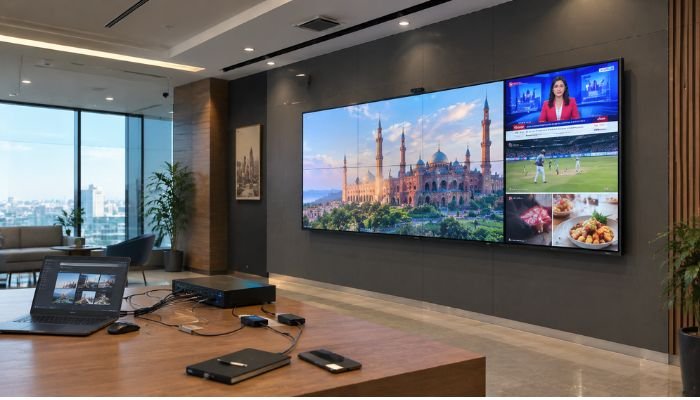
A television has HDMI ports built in. An Indoor SMD Screen is different: it is a wall of small LED cabinets, and the cabinets only understand the data sent by a control system. The usual signal path looks like this: your source devices feed a switcher or directly a video processor; the processor scales and formats the image; a sending card passes it to receiving cards inside the cabinets; and the cabinets light the pixels.
That processor is the heart of any multi-source setup. It decides which input is shown, how the image is scaled to the screen’s pixel grid, and whether two or more sources can appear at once. Understanding this one component makes every other decision easier.
Common Content Sources and How They Connect
| Content Source | Typical Connection | Common Lahore Use |
| Laptop / presentation PC | HDMI or DVI (wireless casting as backup) | Boardroom and seminar presentations |
| Media player / CMS box | HDMI or network-based | Showroom and lobby promotional loops |
| Video conferencing unit | HDMI (usually via switcher) | Hybrid meetings between Lahore and other offices |
| CCTV or camera feed | HDMI, SDI or network stream | Control rooms, security desks, live event cameras |
| Broadcast / satellite receiver | HDMI | Sports, news and event screening |
| Data dashboard PC | DisplayPort or HDMI | Operations and sales monitoring |
Most Lahore projects combine three or four of these. The more varied the sources, the more important it is to plan the switching layer before the screen is ordered.
Three Practical Ways to Combine Multiple Sources
Option 1: A Multi-Input Video Processor
Many LED video processors offer several inputs (commonly a mix of HDMI, DVI and sometimes SDI or DisplayPort) and let you switch between them or show more than one at a time. For rooms with two to four sources, this is often the cleanest and most economical route, because switching, scaling and windowing all happen in one box.
Option 2: An External Switcher or Matrix in Front of the Processor
When there are many sources, or several rooms share equipment, a separate HDMI switcher or matrix collects everything first and sends one clean output into the processor. This keeps the processor’s inputs free, makes it easy to add devices later, and suits auditoriums and control rooms. The same switching principles are covered in our guide to integrating a 4K multimedia projector with modern AV systems, and they apply equally to LED walls.
Option 3: A Hybrid With Wireless Casting and a Media Player
Modern rooms rarely rely on cables alone. A wireless casting receiver lets visitors share a laptop or phone without a plug, while a network-based media player runs scheduled content when nobody is presenting. Both feed the processor like any other source, so staff can move between live presentation and automatic promotional playback with a single selection.
Getting Resolution and Scaling Right
An Indoor SMD Screen has a fixed pixel grid determined by its size and pixel pitch. The cleanest image comes when the processor’s output matches that grid exactly, instead of being stretched to fit. Installers therefore set the output to the screen’s native layout and let the processor scale each incoming source to it. Our explainer on pixel pitch and how it shapes resolution shows why a 2.5mm panel and a 1.8mm panel of the same size need different output settings.
Two habits prevent most image complaints. First, feed 16:9 sources at standard resolutions such as 1080p rather than odd custom modes. Second, check the refresh rate on every source, because a laptop left at an unusual setting can cause flicker or dropped frames when it becomes the active input.
HDCP, EDID and the Dreaded Black Screen
When a source device refuses to display, the cause is usually a handshake problem, not a faulty panel. Two terms matter here. HDCP is the copy-protection check some sources (streaming boxes, certain satellite receivers) perform before sending a picture. EDID is the information a display gives a source about the resolutions it accepts.
A switcher or processor that manages EDID properly presents a consistent, friendly profile to every source, so laptops stay stable when you switch between them. When something is not working, the most reliable fixes are matching HDCP versions along the whole chain, using a switcher with EDID management, and replacing suspect cables before blaming the screen.
Cable Length and Signal Extension
Standard HDMI cables lose reliability as they get longer, particularly at higher resolutions. In Lahore auditoriums and control rooms where the source sits far from the screen, the sensible approach is to extend the signal properly rather than hope a long cable works:
- HDBaseT extenders send video, audio and control over a single Cat6 run and are the usual choice for medium distances.
- Fibre HDMI or fibre extenders suit very long runs and electrically noisy environments.
- Network-based distribution moves video over the building’s network for large campuses, though it needs careful planning of bandwidth.
Split-Screen, Picture-in-Picture and Saved Presets
A good video processor can show more than one source at the same time, such as a presentation on the left with the remote participants on the right, or a promotional loop with a live camera in one corner. The real productivity gain comes from saving these layouts as presets. Instead of dragging windows around before every meeting, staff press “Presentation,” “Video Call,” or “Lobby Loop” and the screen reconfigures itself.
This is particularly useful for hybrid meetings, where the display often needs to show a conferencing feed alongside shared content. The camera and microphone side of that setup is covered in our overview of video conference equipment.
Audio Needs Its Own Plan
An Indoor SMD Screen shows pictures, not sound. When several sources are switched, the audio should follow the video automatically through an audio processor or the switcher’s embedded audio path, feeding ceiling speakers or a sound system. Without this, presenters end up adjusting two separate systems mid-meeting. If you are planning a hall or auditorium, it helps to design sound and picture together, as discussed in our guide to audio system setup for corporate auditoriums.
What Multi-Source Setups Look Like on Real Projects
Several Smart One Technologies installations show how these ideas work in practice, across very different environments:
- Forest Department, Abbottabad: the indoor SMD screen installation was configured so staff could connect laptops, desktop computers, video conferencing systems and cloud-based data platforms, with simple switching that needs no specialist knowledge.
- 11 Corps G.R.C, Peshawar: the large indoor SMD screen in the main hall was tested across presentation computers, media players and live broadcast receivers before handover.
- PAK ARMY HQ 34 DIV: the indoor SMD video walls went through multi-source input testing covering computers, surveillance systems and presentation devices.
- Maryum N Maria, GiGa Mall Rawalpindi: the retail indoor SMD video wall runs MP4 videos, image slideshows and live HDMI inputs, managed by store staff through a simple content interface.
The pattern is consistent: identify every source first, choose the processing and switching layer to match, test every input under real conditions, and train the people who will use it daily.
Step-by-Step: Connecting Multiple Sources the Right Way
- List every source — laptops, media players, conferencing units, cameras, receivers, and any future devices.
- Note each source’s output — connector type, maximum resolution, and whether it uses HDCP.
- Choose the switching layer — processor inputs alone, or an external switcher or matrix.
- Plan cable routes and extenders — measure distances and specify HDBaseT or fibre where needed.
- Set the processor’s output — match the screen’s native pixel layout and confirm refresh rate.
- Build presets — save layouts for each typical use, from presentation to lobby loop.
- Integrate audio and control — tie sound to the active source and give staff a touch panel, keypad or app.
- Test every input — run each source for an extended period, including hot-swapping between them.
- Train and document — hand over a simple guide so nobody has to guess.
Common Mistakes to Avoid
- Plugging sources straight into the panels: the cabinets need a processor, and skipping proper switching leads to constant cable swaps.
- Buying a screen before mapping sources: a processor with too few inputs becomes an expensive limitation later.
- Ignoring HDCP and EDID: this is the single most common reason a source works on the desk but fails on the wall.
- Using long passive HDMI cables: signal drops appear at the worst moment, usually in front of an audience.
- Forgetting the operators: if switching needs a technician, staff will avoid it and the system’s value is lost.
Practical Points for Lahore Installations
Local conditions deserve a place in the design. Voltage fluctuation and power interruptions are a fact of life, so processors, switchers and media players should sit behind a suitable UPS or stabiliser. Equipment racks in warm rooms need ventilation, and dust is a genuine long-term risk in older buildings, so sealed or filtered enclosures are worth considering. A short maintenance visit each year to check connectors, firmware and calibration keeps a multi-source system behaving the way it did on day one.
Why Lahore Businesses Work With Smart One Technologies
Smart One Technologies treats an Indoor SMD Screen as a system, not just a panel. Our team maps your sources, specifies the processor and switching layer, configures resolution and presets, and trains your staff, backed by after-sales support. Explore our range of indoor and outdoor SMD screens or see how we approach display projects across the city on our SMD screen in Lahore page.
Frequently Asked Questions
Can I connect a laptop and a media player to the same Indoor SMD Screen?
Yes. Both connect to the video processor, either directly or through a switcher, and you select which one is displayed or show both in split-screen.
Does an Indoor SMD Screen have HDMI ports like a TV?
Not directly. Inputs are provided by the video processor or controller that drives the LED cabinets, which is why the processor choice matters so much.
How many sources can one Indoor SMD Screen handle?
It depends on the processor and any external switcher. Small rooms often use two to four inputs, while auditoriums and control rooms use a matrix to handle many more.
Why is my laptop showing a black screen on the SMD screen?
Common causes are an HDCP or EDID mismatch, an unsupported resolution or refresh rate, or a faulty or overlong cable. Checking these along the whole signal chain usually resolves it.
Can staff switch sources without a technician?
Yes, if the system is set up with saved presets and a simple control interface such as a touch panel, keypad or app.
Who sets up multi-source Indoor SMD Screen systems in Lahore?
Businesses usually work with an established integrator such as Smart One Technologies, which handles source mapping, processing, installation, testing and staff training as one project.
Final Thoughts
Connecting multiple content sources to a single Indoor SMD Screen is less about the panel and more about the signal chain around it. Map your sources early, put a capable processor and switching layer in front of the cabinets, match resolution to the screen’s native grid, handle HDCP and long cable runs properly, and make switching a one-touch action. Do that, and one display can serve presentations, video calls, camera feeds and promotional content all day without anyone touching a cable.
| Need Several Devices Running on One Indoor SMD Screen in Lahore?
Get a free source-mapping consultation and a switching and control plan built around your room from Smart One Technologies. |

0 Comments on “How to Connect Multiple Content Sources to a Single Indoor SMD Screen in Lahore”